
Many laptops and Windows desktop PC begin to show full storage alerts without the user having installed large programs or accumulated heavy files. This occurs even in new equipment, and especially in old laptops or with SSD discs with little capacity, where Each Gigabyte counts.
However, what is not always known is that much of the space is being occupied by hidden functions of the operating system that are activated by default and that are rarely managed correctly.
You may not know, but the system automatically keeps temporary files, backup copies of previous versions, hibernation data and other elements that, although useful in some contexts, can be eliminated without risk. Know how to do it allows Recover up to 30 GB of storage Without compromising system stability or eraseing anything important.
Eliminate the Windows.old folder
Computer today
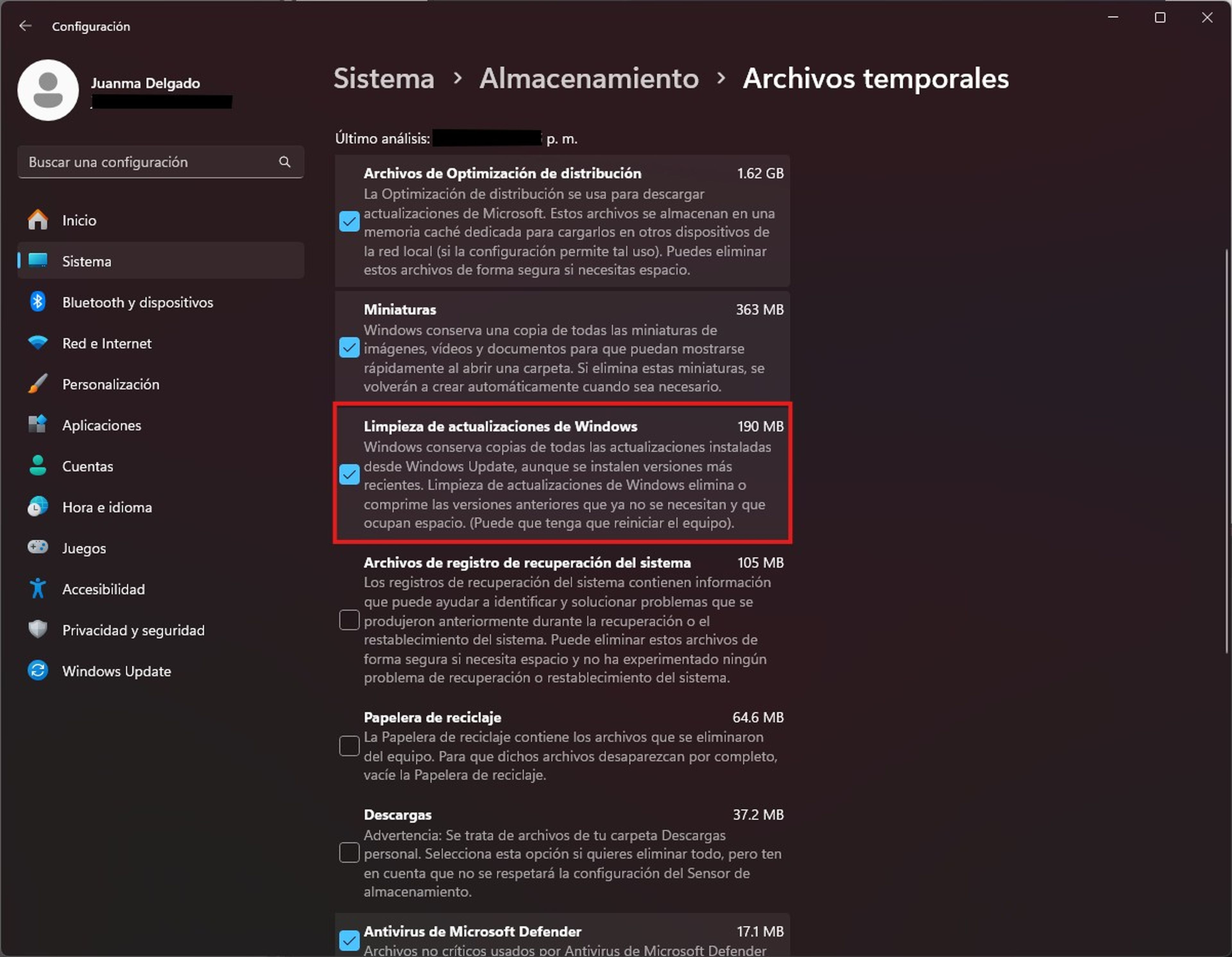
Every time you update a new version of Windows, the system generates a folder called Windows.old. Inside archives of the previous system, configurations and other elements that allow to restore the previous version are stored if something fails.
The problem is that This folder can occupy between 10 and 15 GB easily. Although the system eliminates it automatically after 30 days, it is not always appropriate to wait so much. If you do not intend to go back, you can erase it before safely using the temporary file cleaning system.
To do this, go to Configuration> System> Storage. Enter temporary files and mark the option Windows update cleaning. At the top, just next to Updateclick on Remove files. Thus you will release space immediately without affecting the system.
Similarly, you can do it through CMD, and it is also a very simple process to carry out. First open the picture Execute con Win + Rwrites cmd And press Ctrl + Shift + Enter to open the system symbol as administrator.
Then run the command takeown /F «C:\Windows.old» /A /R /DY to take property of all files and folders; Then use icacls «C:\Windows.old» /grant *S-1-5-32-544:F /T /C /Q to grant complete permits, and finally eliminate the folder with RD /S /Q «C:\Windows.old».
Disable hibernation
Computer today
In many laptops, Windows activates by default a function that is barely used, but that can occupy several gigabytes without you knowing it. It is the hibernation mode, an option designed to save everything you have open when you turn off the equipmentwith the promise to resume it exactly where you left it.
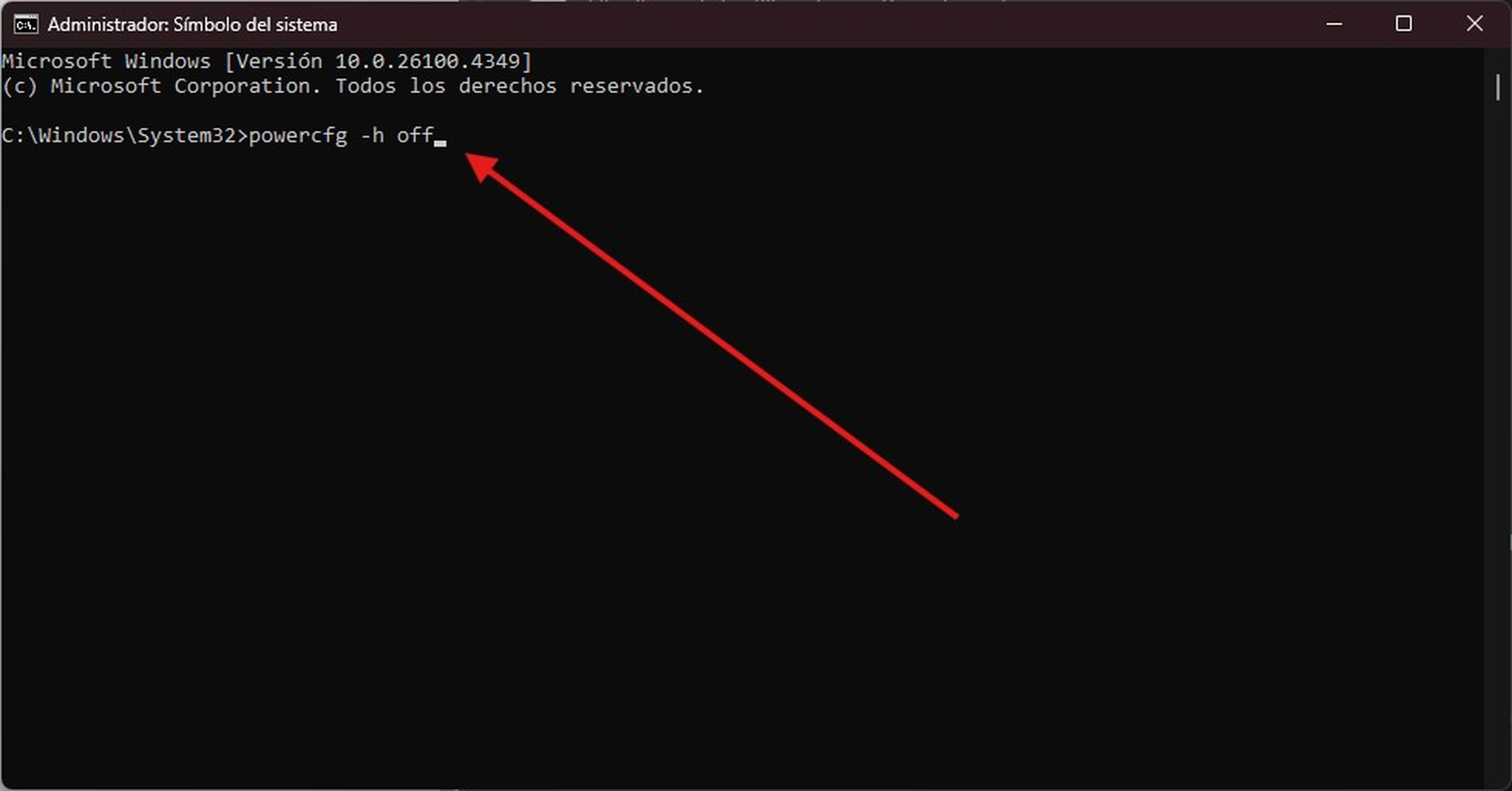
But if you never use that function – and many users do not even know what exists – all it is doing is reserve space unnecessarily on the disc, which is occupied by a hidden file called hiberfil.syswhich can be around 5 to 8 GB, depending on the team. If you don’t use it, you can completely disable it with a single command.
- Open the System symbol with administrator privileges.
- Write the command: powercfg -h off.
- Credit Enter And close the window.
- If at any time you decide to activate it, you just have to use powercfg -h on.
Delete the temporal files and the cache manually
Windows usually accumulates a large number of temporary files in the background, such as installation caches, data generated by applications, and duplicate or residual files after updates or uninstallations.
These, although in principle they help the system function more fluidly, Over time they occupy unnecessary space and can slow the performance. Although the system itself has automatic tools to eliminate part of these data, resorting to manual cleaning allows you to be deepened more deeply and release more disk space.
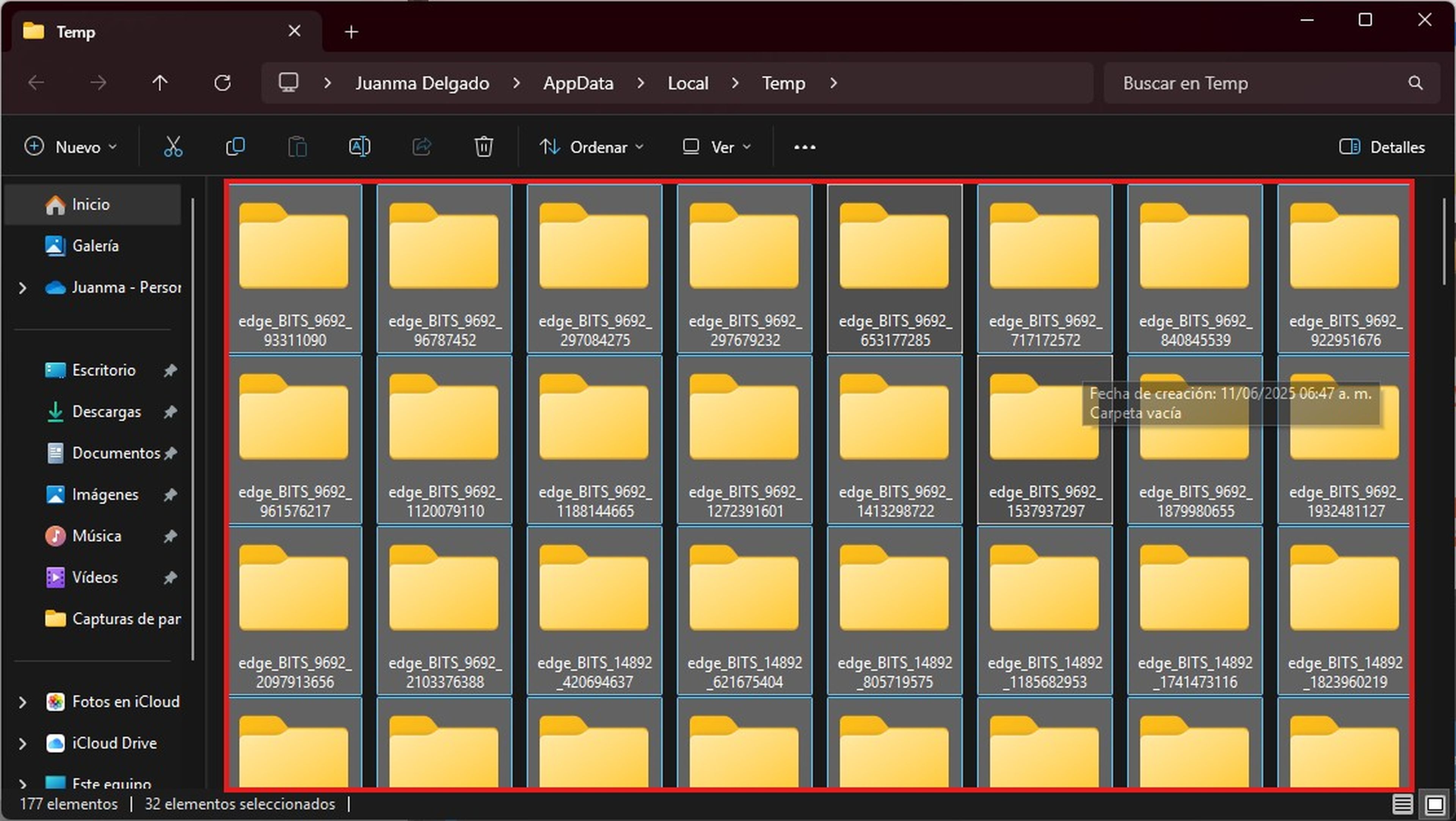
To do so yourself, you have two simple and safe options. The first consists of opening the picture Execute con Windows + Rwrite %temp% and click Enter to access the temporary file folder.
You just have to select everything you see and delete it; If any message appears «Access denied«, simply choose to omit those files.
Computer today
The second alternative is to open Powershell with administrator privileges from the context menu of the start button and execute the command del /q/f/s %TEMP%*that quickly erases the content of the temporary folder.
It is important to mention that Both methods will help you recover between 1 and 4 GB of spacedepending on the time and use of your system. Performing this cleaning periodically helps keep your equipment more agile and with more available space.
Use disk space liberator (Cleanmgr)
The operating system includes its own tool to release space safely: Cleanmgr. Although it has been replaced in part by the new storage functions, it is still useful for cleaning system files that are not managed from the modern interface.
Using it regularly helps keep your equipment lighter and faster, avoiding the accumulation of temporary files, errors or installation data reports you no longer need. To use the tool, follow these steps:
- Press the keys Windows + R To open the dialog box Execute.
- Writes Cleanmgr and click Enter To open the Dispace liberator.
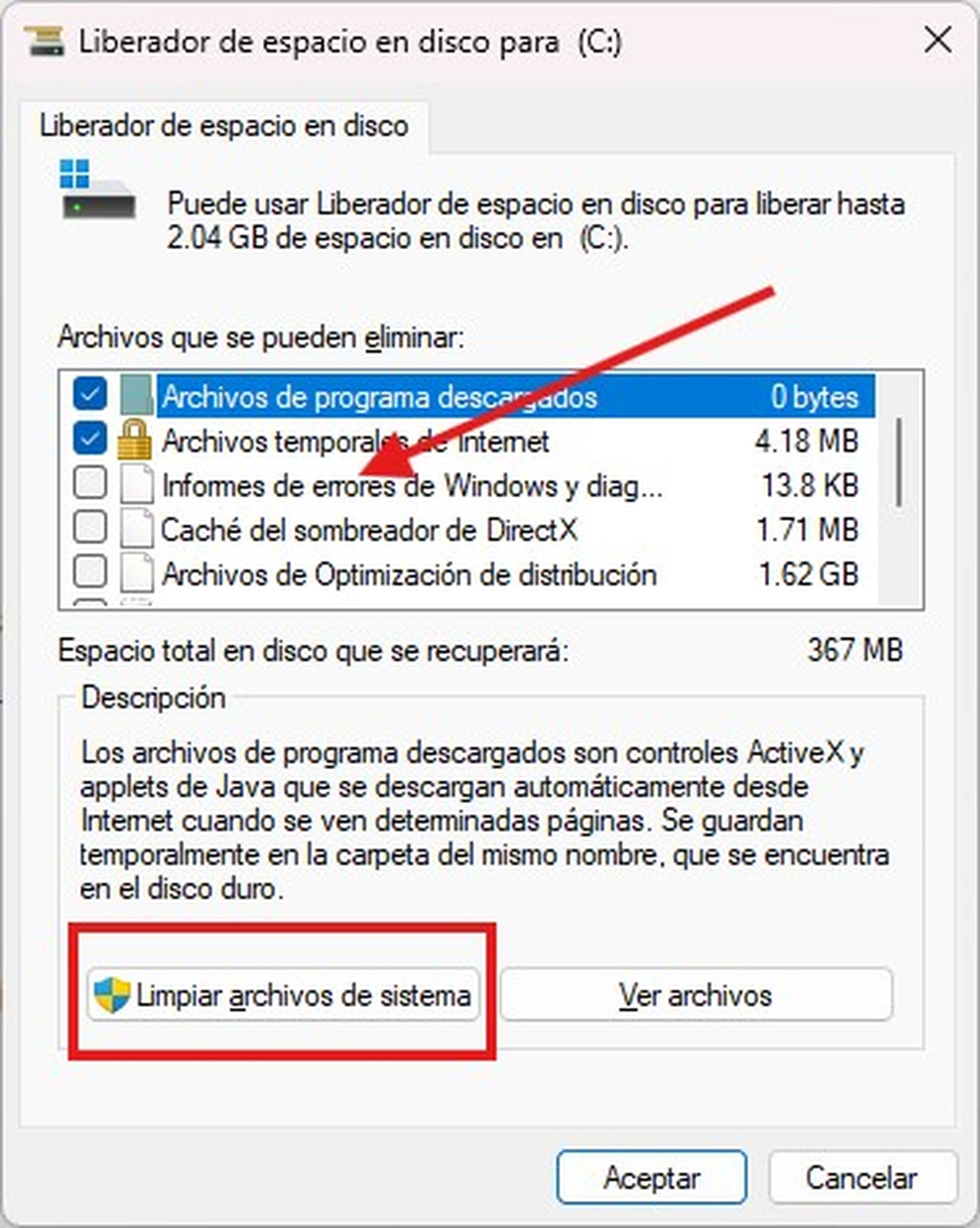
- Select the main unit, normally C:and wait for Windows to analyze the files that can be deleted.
- Mark the boxes of the elements you want to delete, such as temporary files, error reports or old installation data.
- If you want to perform a deeper cleaning, click Clean system files so that the tool analyze and allow to eliminate additional waste files.
Computer today
- Confirm the action and wait for the process to be completed.
- Performing this periodically cleaning is a good practice for your operating system to work more fluently and have more space available for your files and applications.
Release up to 30 GB in Windows Without erasing personal documents or touching essential configurations it is possible. You just need to know what functions are consuming space in the background and how to manage them.
These actions not only help save disk storage, it also allows you to improve equipment with older or more limited discs.
It is not necessary to resort to external programs or risk with doubtful solutions. With the system’s own tools, you can recover space, maintain control of your equipment and extend its useful life without complications.
Know How we work in NoticiasVE.
Tags: Windows 11, Windows 10