
Most users use ChatGPT-5 as if it were a simple chat, ask a question and wait for the answer. However, behind this tool lies a set of hidden settings that can completely change the experience.
We are not talking about fancy tricks or settings for experts, but about functions that are within everyone’s reach that make a difference and the experience of having a personal assistant that remembers, talks to you, manages your data and adapts its style to the way you work.
While millions of people use it as a simple consultation app, those who explore its functions discover that the OpenAI chatbot can be integrated into the routine as a real productivity ally, which is very interesting.
It means you can turn it into something more advanced than a conversational chat. The difference is in the settings, because activating a few options opens the door to a much more complete use, where AI not only responds, but actively collaborates in your daily life.
Customize how AI responds
If you’ve ever wanted ChatGPT 5 to always speak to you in a certain tone, here’s the key. With personalized instructions you can decide whether you want it to act as a teacher, a trusted advisor, or maintain a more informal style.
You can even tell him how to address you, so you don’t have to repeat it every session. It’s a simple way to save time and feel like AI fits the way you work. You can do this from the app or the website, going to Settings > Personalization > Customize ChatGPT.
Privacy and control of your data
Computer Today
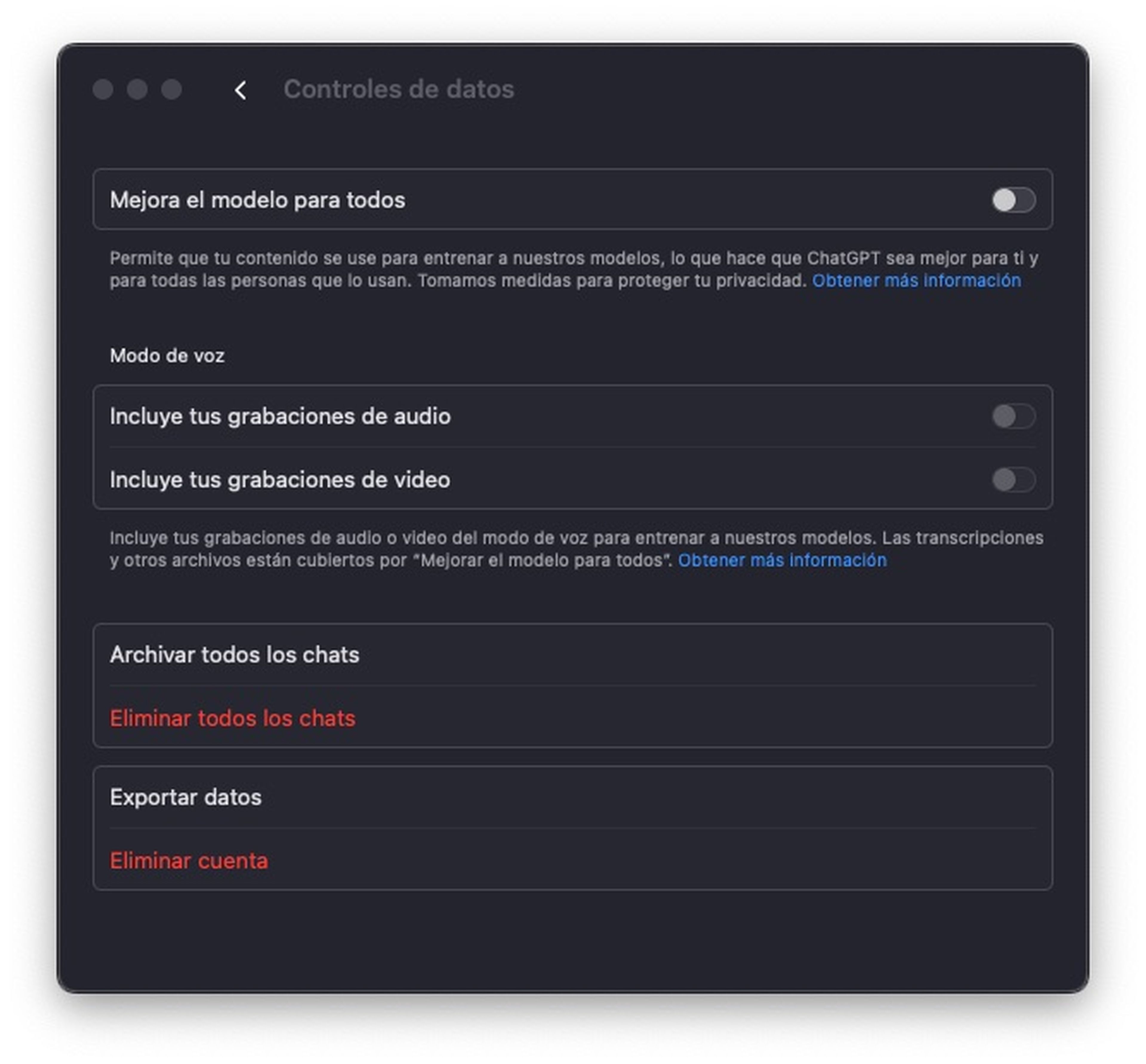
Another of the less explored sections are data and export controls. From there you can delete old conversations, download your entire history, or decide what to keep. At a time when privacy is at the center of the debate, this option becomes especially important because it provides something that many overlook: transparency and control over what you share.
Taking a few minutes to properly configure these settings not only gives you more peace of mind, it also ensures that your information is not stored without you being aware of it. Having the ability to decide what to keep and what to delete makes this feature one of the most useful. Turn it on in Settings > Data Controls.
Choose between speed and depth
Subscribers of the Plus version have the advanced model change, which is nothing more than a function that allows you to switch between a fast ChatGPT-5, ideal for immediate responses, and a slower thinking mode, but with greater reasoning capacity.
Imagine that you want a brief explanation to resolve a specific question or, on the contrary, a detailed analysis for a complex project. In this case, Choosing between speed and depth is as simple as activating the appropriate preference.
Talk to ChatGPT as if it were a person

Computer Today
Voice mode makes the relationship with AI closer and a better experience. Available in the mobile application, it allows you to speak directly without having to type. You can consult a recipe while you cook or ask for help with your hands busy.
The experience is further enhanced when combined with the vision feature, which makes it possible for ChatGPT to understand what you see and give you answers in real time. It’s not just talking, it’s interacting with an intelligent assistant that gets closer and closer to the experience of a natural conversation.
Memory mode
Memory mode adds an extra layer of personalization, as GPT-5 can remember your topics of interest, your writing style, or details you’ve shared. This way, you don’t have to repeat the same information in each session.
It is true that not all users will want to activate this function for privacy reasons, but those who do obtain more consistent and adapted responses over time. It is one more step on the path to transforming AI into a personal assistant that adjusts to your habits.
These configurations reflect something important, ChatGPT-5 is not a simple chatbot, but It is a flexible platform that can function as support in your work, in your studies or in your daily life.
And the best thing is that you don’t need knowledge to take advantage of them, just activate a few options and start using them. Everything indicates that these functions anticipate what the relationship with AI assistants will be like in the immediate future.
Get to know how we work in NoticiasVE.
Tags: Tricks